WU_E_DOWNLOAD_FAILED 0x80240034
Hex 0x80240034 · Decimal -2145124300 · Type HRESULT · Facility WINDOWSUPDATE (36)
Update failed to download.
Also searched as: 0x80240034, windows update error 0x80240034, download error 0x80240034
What it means
0x80240034 appears in Settings > Windows Update when an update download fails or stalls at a percentage. Windows Update could not retrieve all update files. Network interruptions or a corrupted download cache are the usual causes.
Applies to: Windows 10, Windows 11
How to fix WU_E_DOWNLOAD_FAILED
- Check your connection, pause and resume updates, and retry
- Disable VPN or proxy software temporarily
- Free up space on C: if it is nearly full (Settings > System > Storage)
- Run the Windows Update troubleshooter: Settings > System > Troubleshoot > Other troubleshooters > Windows Update (Windows 10: Settings > Update & Security > Troubleshoot > Additional troubleshooters)
- Reset the Windows Update cache: in Terminal (Admin) run net stop wuauserv, net stop bits and net stop cryptsvc, rename C:\Windows\SoftwareDistribution to SoftwareDistribution.old, then run net start cryptsvc, net start bits and net start wuauserv
- Install the failing update manually: note its KB number in Settings > Windows Update > Update history, download the matching package from the Microsoft Update Catalog (catalog.update.microsoft.com) and run it
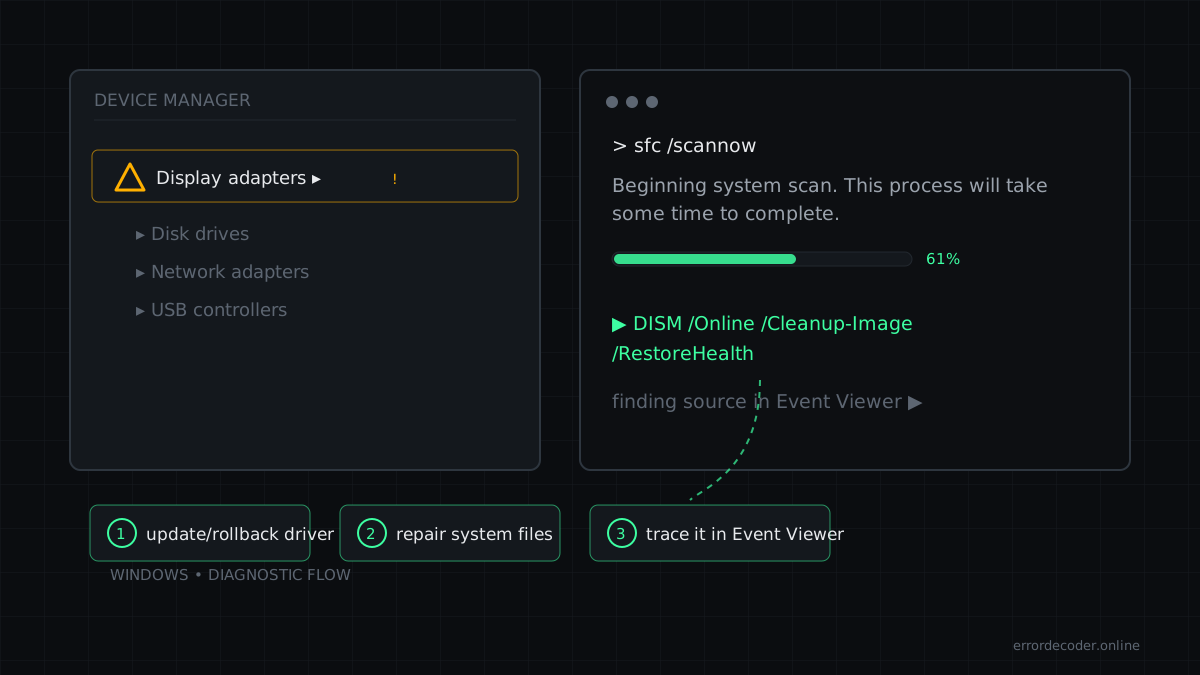
- Repair the component store from Terminal (Admin): run DISM /Online /Cleanup-Image /RestoreHealth, then sfc /scannow, and restart
Why it happens
Incomplete or corrupted files in SoftwareDistribution, an unstable network, a proxy or VPN, or low disk space interrupt the download.
FAQ
Why is my Windows update stuck downloading?
A damaged cache or network issue is common; resetting SoftwareDistribution forces a fresh download.
Is it safe to delete SoftwareDistribution?
Renaming it after stopping the update services is safe; Windows recreates it.
Related errors
Last updated: